An AI label generator turns a written brief into a label design image for a product, bottle, jar, can or homemade food gift. Use GPT image 2 in the existing image tool: text generation costs 10 credits and a reference edit costs 15 credits. Describe the product name, style, colors and a few short words, then proofread every letter in the result. The output is a flat design image, not a print-ready file with bleed, dieline or exact dimensions.
Use only names, logos and references you have the rights to use, with consent from anyone pictured; do not copy other brands. This independent website is not affiliated with or endorsed by model vendors. Generated lettering can contain errors. Ingredient lists, nutrition facts, barcodes and regulatory wording are not verified.
A product brief with a short name, or your own authorized logo
10 credits from text; 15 credits with a reference using GPT image 2
A flat label design image to proofread and lay out for printing
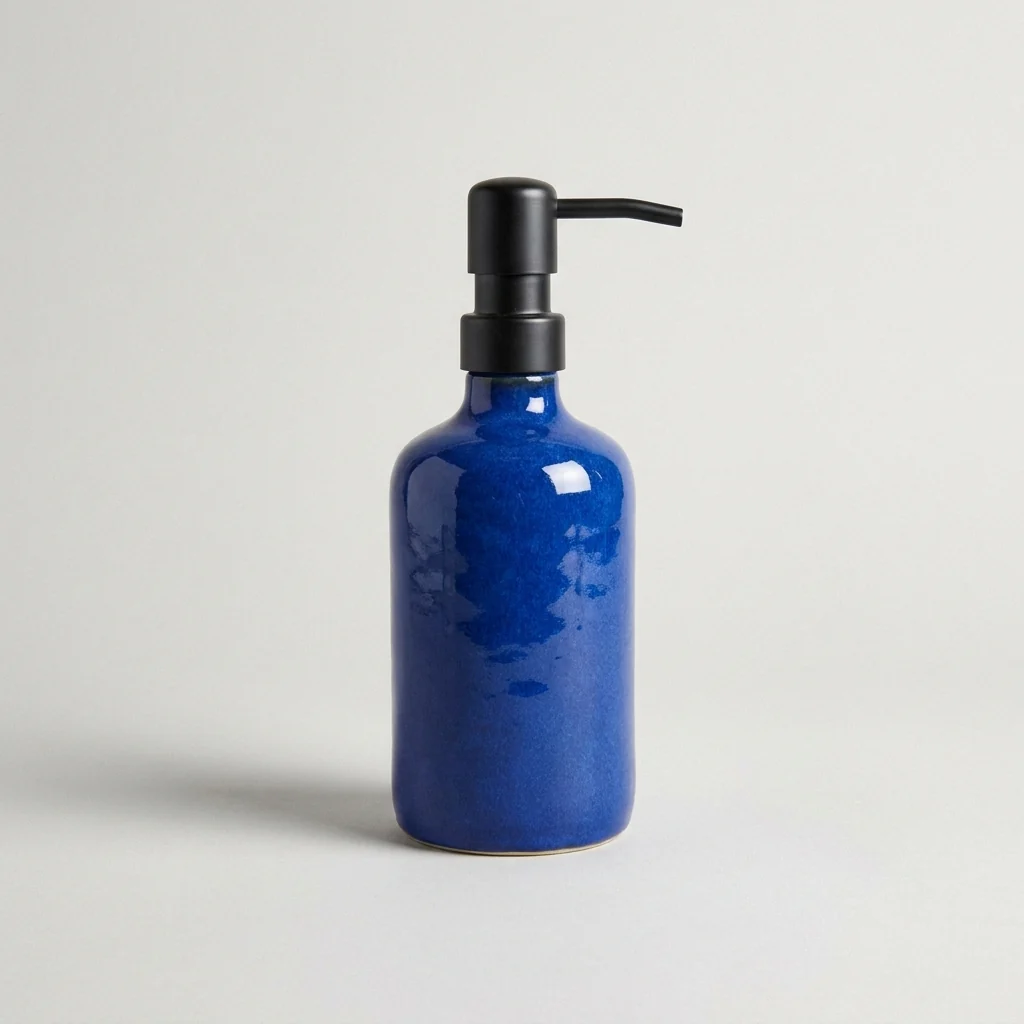
Existing site product photo of an unlabeled bottle, not a generated label or an example output. The prompts below are untested suggestions.
How to design a label
Keep the wording short and check every letter
Decide the product type, label shape and the few words that must appear before you write the prompt. Short text renders more reliably than long ingredient lists.
1. Write the label brief
Note the product, a short original name, the container (bottle, jar, can or box) and the mood. Put exact words in quotation marks. To use your own logo, prepare an authorized JPEG, PNG or WebP reference up to 30 MB for GPT image 2.
2. Describe the style and layout
Open the generator, manually select GPT image 2 and paste your prompt. Name the colors, illustration style, typography mood and label shape. Ask for a flat label on a plain background so the artwork is easy to inspect and reuse.
3. Review the quote and proofread
Sign in and check the displayed quote before submitting: 10 credits from text or 15 credits for a reference edit. Proofread every word; spelling can come out wrong and may need another attempt, which is a new request.
Label prompt examples
Try bottle, jar and can labels
These are untested prompt suggestions, not verified generated labels. Every product name below is invented; replace it with your own and keep the wording short.
Homemade jam jar label
Create a flat round jar label for homemade strawberry jam. Hand-drawn strawberries and leaves around the edge, a cream background and a deep red border. Center the words "Field Day Jam" and "Strawberry" in a friendly serif. Plain background, no barcode, no other text.
Small-batch bottle label
Design a flat rectangular label for a small-batch olive oil bottle named "Quiet Grove". Use an olive branch line illustration, muted green and gold, and an elegant serif headline. Include only the words "Quiet Grove" and "Olive Oil". Show the label flat, not on a bottle.
Craft drink can label
Create a wraparound-style flat label design for a sparkling citrus drink called "Bright Hour". Bold geometric orange and yellow shapes, a clean sans-serif title and lots of white space. Include only the words "Bright Hour" and "Sparkling Citrus". No logos, nutrition panel or barcode.
Before printing a label
Finish the file outside the image tool
A generated label shows a direction for color, illustration and type. Printers need exact sizes, bleed and verified text that the image does not contain.
Proofread and replace text
Check spelling, letter spacing and every word against your brief. Where the generated lettering is wrong, rebuild the text in a layout editor instead of printing it as generated.
Set size and bleed yourself
Download the image and place it in layout software at your label size. Add bleed, safe margins and any dieline your printer specifies. Confirm resolution with the printer before ordering.
Add required information separately
Ingredients, allergens, nutrition facts, net quantity, barcodes and other required wording depend on your product and region. Add verified content in your editor and check local labeling rules.
Can I make a product label from a text description?
Yes. Describe the product, a short name in quotation marks, the container and the style. The result is a flat label design image that you can proofread and refine.
Will the text on my label be spelled correctly?
No. Correct spelling is not guaranteed. Keep wording short, proofread every letter and rebuild any wrong text in a layout editor; each new attempt is another request.
Can I add my own logo to a label?
Yes. Upload an authorized logo as a JPEG, PNG or WebP reference up to 30 MB and describe where it should sit. The model can change logo details, so compare the result with your original.
Is the label ready to send to a printer?
No. It is a flat image without bleed, dieline, exact dimensions or editable layers. Place it in layout software, set your label size and confirm the printer’s file requirements.
Is generation free?
No. This guide does not promise free generation. With GPT image 2, text generation costs 10 credits and a reference edit costs 15 credits. Sign in and check your balance and the displayed quote before submitting. Each retry is another request.
Does this page automatically set up the generator?
No. The button opens the existing image generator and does not prefill a prompt, select a model, upload a photo or submit a job. Set up the request manually and check the quote before generating.