1. Prepare an authorized photo
Use a landscape, still life or portrait you have permission to edit. Remove private details and confirm consent from anyone pictured. GPT image 2 accepts JPEG, PNG and WebP references up to 30 MB.
Photo to painting converts an authorized photograph into a digital painting-style image, such as oil, watercolor or impressionism. Use GPT image 2 in the existing image tool for 15 credits per reference edit. Upload a landscape, still life or your own portrait, then describe the brushwork, palette and details to retain. This guide offers manual prompts for digital artwork, not physical paintings.
Upload only photos you have the rights to edit, with consent from anyone pictured. This independent website is not affiliated with or endorsed by model vendors. The output is digital artwork; this service does not print, frame or ship paintings, and exact preservation of the source is not guaranteed.
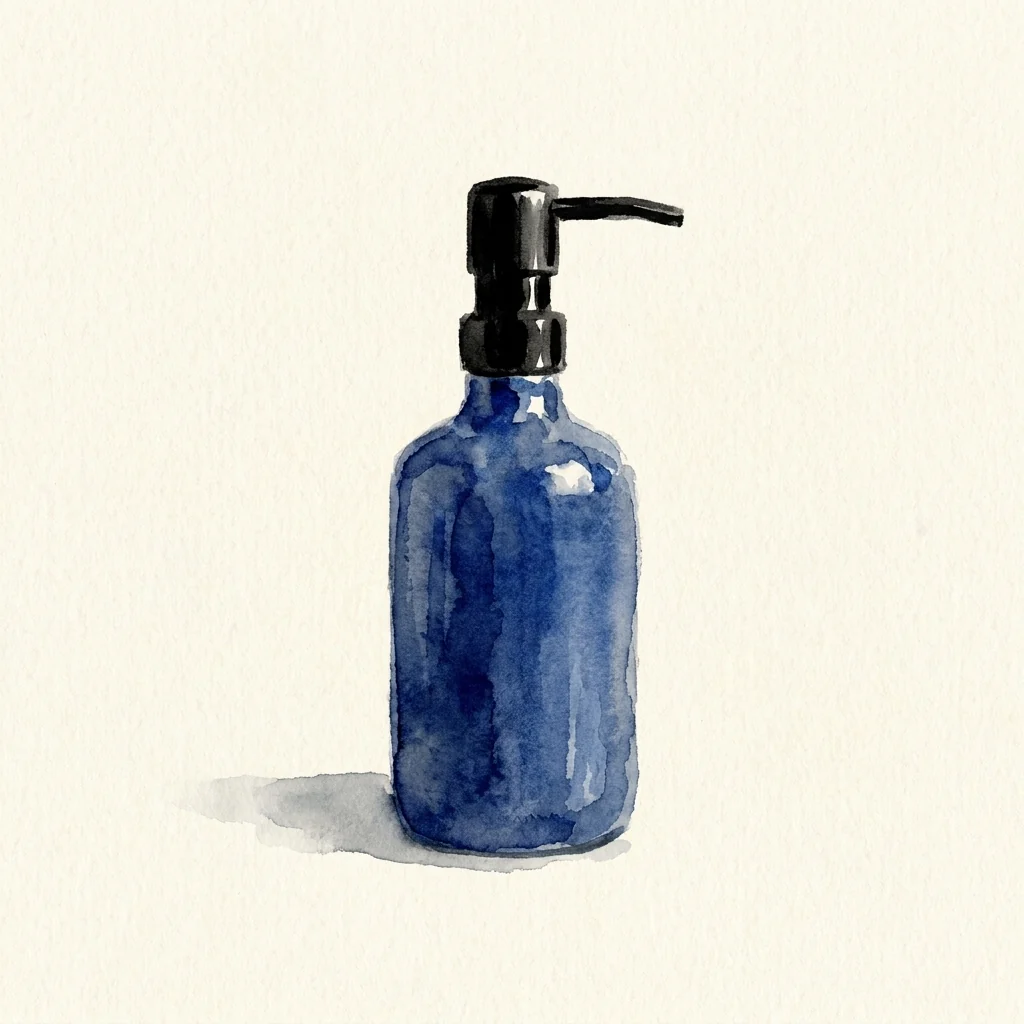
Choose a clear subject and decide which parts should remain recognizable. Describe the painting medium and surface texture instead of relying on a vague request to make it artistic.
Use a landscape, still life or portrait you have permission to edit. Remove private details and confirm consent from anyone pictured. GPT image 2 accepts JPEG, PNG and WebP references up to 30 MB.
Open the image generator, choose GPT image 2, upload your photo and paste a prompt. Specify oil brushstrokes, transparent watercolor washes or impressionist touches of color. Name the subject, composition and details you want to retain; these instructions do not lock the original geometry.
Sign in and check the displayed quote before submitting: 15 credits for a photo edit with this model. Compare the main subject and composition with the original. Download a result after checking faces, edges and unintended objects; arrange any physical printing elsewhere.
These are untested prompt suggestions rather than verified outputs. Adapt the subject to your own photo and describe the details you want preserved.
Turn my authorized still-life photo into a digital oil painting with visible layered brushstrokes, warm shadows and subtle canvas texture. Retain the main objects, their arrangement and the original viewpoint as closely as possible. Simplify distracting background details while keeping the subject recognizable. No added signature, lettering or frame.
Convert my landscape photo into a watercolor-style image with transparent washes, soft pigment blooms and pale paper highlights. Keep the horizon, main buildings and composition as close to the source as possible. Use a restrained blue and warm-earth palette. Avoid invented landmarks, text and decorative borders.
Reinterpret my garden photo as an impressionist-style digital painting with short visible brushstrokes, broken color and soft outdoor light. Retain the arrangement of paths, trees and flowers while simplifying small details. Keep the main shapes readable and use warm sunlight with cool shadows. Do not add people, signatures or a physical frame.
Painting styles emphasize pigment, brushwork and color. Choose a different linked workflow when your goal is shaded pencil drawing or a portrait centered on a pet.
Check whether brushwork has hidden important features or changed faces and objects. Ask for less abstraction if the subject needs to stay recognizable. The model can invent details even with a reference photo.
Use photo to sketch for graphite contours and charcoal shading. Use the pet portrait guide for animal markings, eyes and themed portrait prompts. This page focuses on painting media across general photo subjects.
The download is a digital image, not a hand-painted canvas or layered painting document. Printing, framing and shipping are not included. Check file requirements with your chosen print provider before ordering elsewhere; print quality is not guaranteed.
Create an oil, black-and-white or studio-lit portrait of one person.
Create original fantasy scenes and characters from text or a reference.
Style an authorized family group photo as a digital portrait.
Explore pencil and charcoal drawing effects instead of colored brushwork.
Focus on animal portraits and preserving distinctive pet markings.
Review GPT image 2, used for this guide’s workflow and quote.
Review credit options before submitting a photo edit.
Review the terms for uploads and generated artwork.
Yes. Upload an authorized photo in GPT image 2 and request layered brushstrokes, a palette and canvas texture. The result is digital painting-style artwork rather than a physical oil painting.
Yes. Describe transparent washes and paper highlights for watercolor, or broken color and short brushstrokes for impressionism. Use the prompts above as starting points and inspect the result.
No. Painting styles simplify details, and the model can change shapes or invent objects. Name the features to retain and compare the finished image with your original.
No. This workflow provides a digital image only. It does not sell prints, frame artwork or ship paintings; arrange those services separately after checking the file requirements.
No. This guide does not promise free generation. A photo edit with GPT image 2 costs 15 credits. Sign in and check your balance and the displayed quote before submitting; each retry is a separate request.
No. It opens the existing image generator and does not prefill a prompt, choose a model, upload a photo or submit a job. Set up the edit manually before checking the quote.