An AI family portrait generator turns an authorized family group photo into a digital portrait in a shared visual style. Use GPT image 2 in the existing image tool for 15 credits per reference edit. Start with a photo showing everyone together, then request oil brushwork, a holiday setting or studio-style lighting. This guide uses a single group photo and does not promise seamless assembly of separate portraits or exact preservation of every face.
Upload only photos of your own family or photos you are authorized to edit, with consent from everyone pictured and appropriate guardian permission for children. This independent website is not affiliated with or endorsed by model vendors. The result is a digital image; printing, framing and shipping are not included.
Start with an authorized group photo showing the family together
15 credits per reference edit with GPT image 2
JPEG, PNG or WebP photo up to 30 MB
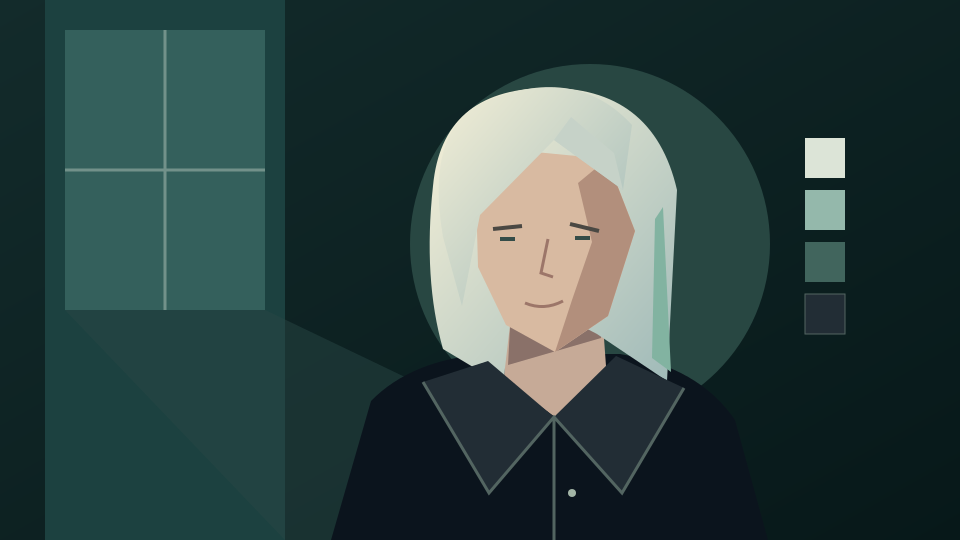
Existing site illustration of an invented adult, used to discuss portrait style and reference selection. This is not a family portrait generated by these prompts or proof of preserved likeness.
How to make an AI family portrait
Choose the group photo before the style
Start with a photograph where everyone is visible and faces are not hidden by deep shadows. A shared source composition gives you a clearer way to compare people, placement and expressions after the edit.
1. Prepare an authorized group photo
Choose a family photo you have permission to upload and edit. Get consent, remove private background details and use JPEG, PNG or WebP up to 30 MB. If relatives were photographed separately, assemble an authorized group composition in an editor first; this guide does not provide an automatic family-photo merge.
2. Describe a shared portrait style
Open the image generator, choose GPT image 2 and upload the group photo. Ask for oil brushstrokes, holiday lighting or a studio-style backdrop. Name the people, expressions and arrangement to retain. These are written instructions, not dedicated family-portrait presets.
3. Check each face before downloading
Sign in and review the 15-credit edit quote before submitting. Compare every face, expression, hand and position against the original. Download the digital image after inspection; each retry is another request and does not guarantee a closer likeness.
Family portrait prompt examples
Keep the family, change the visual treatment
These are untested prompt suggestions, not verified family portrait outputs. Adapt them to your authorized group photo and request changes to style rather than inventing missing relatives.
Oil-painted family keepsake
Turn my authorized family group photo into a digital oil-painted portrait with warm earth colors, visible brushwork and subtle canvas texture. Keep everyone in the same arrangement and retain their facial features, skin tones, expressions and clothing as closely as possible. Keep faces readable rather than heavily abstracted. No added people, signature, lettering or frame.
Holiday portrait for December
Use my authorized family group photo for a warm holiday portrait with soft evergreen decorations and gentle window light. Keep the family arrangement, faces and expressions as close to the source as possible. Use a coordinated warm color palette without changing anyone’s identity. Keep faces unobstructed. No added relatives, branded decorations, greeting text or frame.
Studio-style family portrait
Edit my authorized family group photo into a studio-style digital portrait with a plain warm-gray backdrop and soft, even lighting across the group. Keep the original poses, expressions, skin tones and clothing as closely as possible. Avoid beauty retouching, invented accessories and altered facial proportions. No extra people, logos or lettering.
Before sharing a family portrait
Review likeness and ask before sharing
A generated family portrait is a creative edit. People in the same photo can change in different ways, so check the whole group and each individual before using it in a personal keepsake or holiday layout.
Compare everyone with the original
Inspect faces, hair, skin tones, ages, hands and any family pet. Check for missing or added people and changed relationships between poses. If a face is altered, describe the correction and reuse the original reference; exact likeness is not guaranteed.
Handle consent and private details
Use photos you own or have permission to edit. Discuss the intended portrayal and sharing with family members, and obtain appropriate guardian permission for children. Avoid exposing names, addresses, school details or other private information in the reference or prompt.
Plan gifts and printing separately
The result is a digital portrait image. There is no printing, framing, shipping or guaranteed print quality. Add reliable names and holiday wording in a separate editor, and check the downloaded file against any external print provider’s requirements before ordering.
Can I create a family portrait from a group photo?
Yes. Upload an authorized group photo in GPT image 2 and describe the shared portrait style. Use a source where everyone is visible, then compare each person with the original.
Can I seamlessly combine separate family photos here?
No. This guide does not promise seamless multi-photo assembly. Start with a group photo, or prepare an authorized group composition in a separate editor before requesting a style edit.
Will every family member look exactly the same?
No. Generated edits can change faces, ages, expressions and body details. Ask to preserve those features and inspect everyone individually before sharing the portrait.
Can I request oil, holiday and studio portrait styles?
Yes. Describe the brushwork, decorations or lighting in your prompt. These are visual directions to review, not fixed style presets or guaranteed matches.
Can I upload relatives’ or children’s photos?
Yes. Use only your own family photos or photos you are authorized to edit, with consent from everyone pictured and appropriate guardian permission for children. Agree on how the edited portrait will be shared.
Does this include a printed family portrait?
No. The workflow creates a digital image. Printing, framing and shipping require a separate service, and this guide does not guarantee print quality.
Is AI family portrait generation free?
No. This guide does not promise free generation. A reference edit with GPT image 2 costs 15 credits. Sign in and check your balance and the displayed quote before each request.
Does the button automatically set up my portrait?
No. It opens the existing image generator and does not prefill a prompt, choose a model, upload a photo or submit a job. Configure the edit manually and check the quote.